User Metadata
The Tinker SDK supports attaching arbitrary key-value pairs to sessions, training runs, and checkpoints via the user_metadata parameter.
You can then access the user_metadata property when fetching those entities via the Tinker SDK, as well as view this metadata in the Tinker Console.
Writing
import tinker

# user_metadata on session
service_client = tinker.ServiceClient(user_metadata={"my-key": "my-value"})

# user_metadata on training run
training_client = await service_client.create_lora_training_client(
    base_model=BASE_MODEL, user_metadata={"my-key": "my-value"}
)

# user_metadata on checkpoint
checkpoint = await training_client.save_state(
    "my-checkpoint-name", user_metadata={"my-key": "my-value"}
)

# user_metadata on sampler checkpoint
sampler_checkpoint = await training_client.save_weights_for_sampler(
    "sampling-checkpoint-name", user_metadata={"my-key": "my-value"}
)
Reading
Create a standalone RestClient to fetch entities from Tinker without creating a session. The returned entities store the user_metadata field.
Sessions
sessions = await rest_client.list_sessions(limit=10)
session_id = sessions.sessions[0]
session = await rest_client.get_session(session_id)
print(session.user_metadata["my-key"])
Training runs
get_info() reads information cached when the training client was created; it does not make a request or need await.
info = training_client.get_info()
run_id = info.model_id  # e.g. "my-session:train:0"
run = await rest_client.get_training_run(run_id)
print(run.user_metadata["my-key"])

runs = await rest_client.list_training_runs(limit=10)
for run in runs.training_runs:
    print(run.training_run_id, run.user_metadata["my-key"])
Checkpoints
checkpoints = await rest_client.list_checkpoints(run_id)
checkpoint = checkpoints.checkpoints[0]
print(checkpoint.user_metadata["my-key"])
Tinker Console
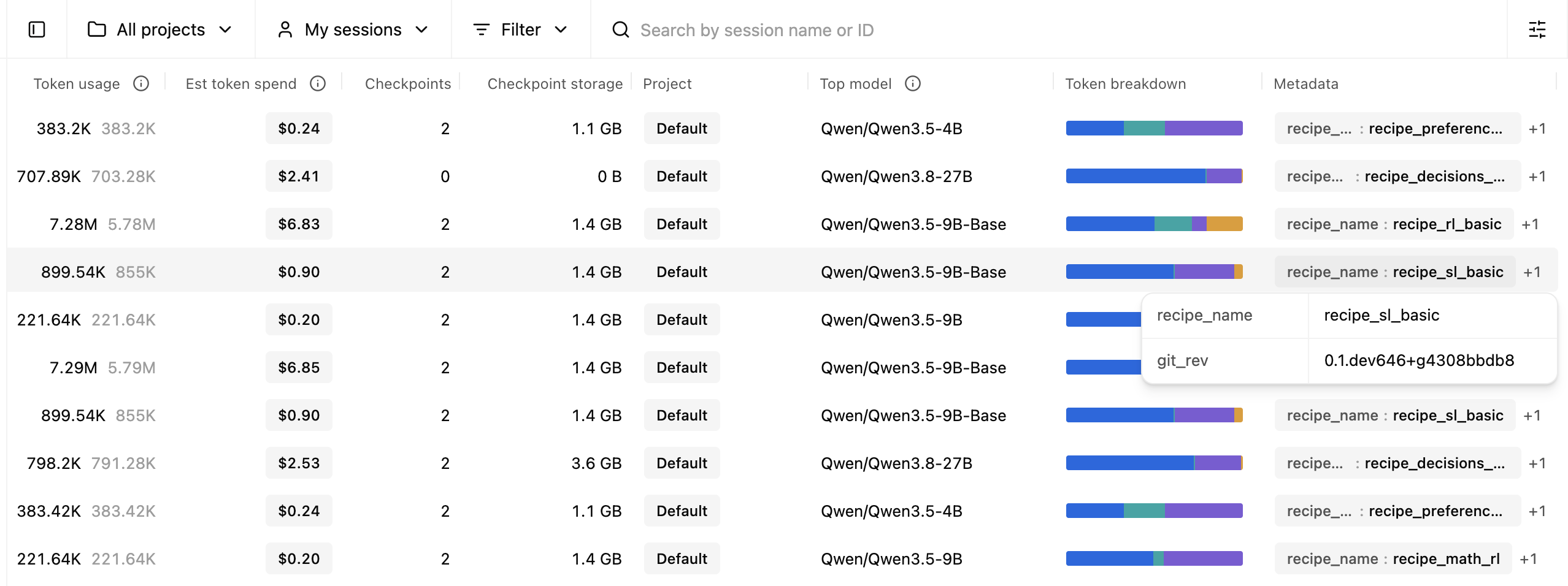
The pages for individual sessions, training runs, and checkpoints show the user metadata keys and values in a table.
Anywhere there is a list of entities, there is a "Metadata" column (defaults to the last column in the table) that shows all of the user metadata keys and values. You can drag and drop the column to reorder it to make it more prominent as desired.
Pinning keys as columns
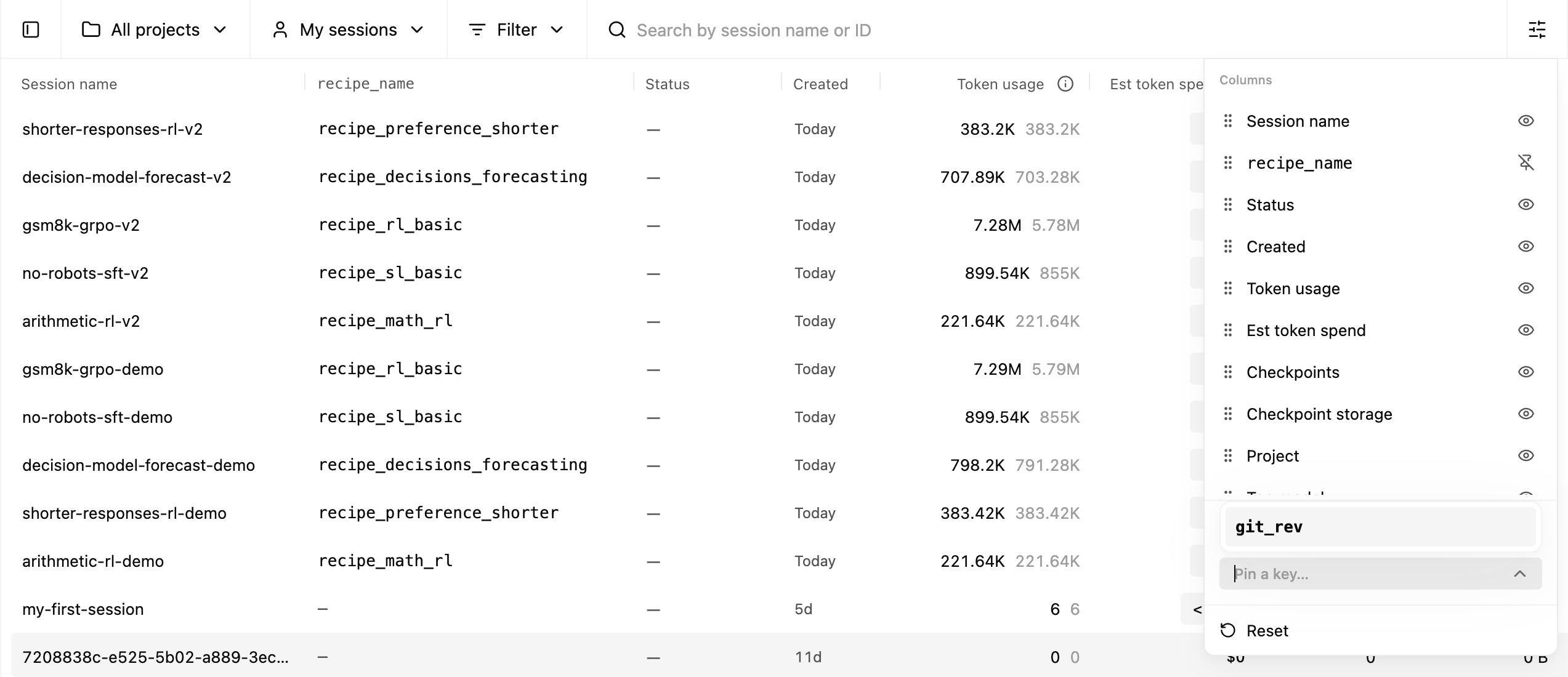
On any table showing sessions, training runs, or checkpoints, you can pin a specific user metadata key as a column in the table. You can then rearrange that column by dragging and dropping like you would for any other column.
Filtering by specific key/value pairs
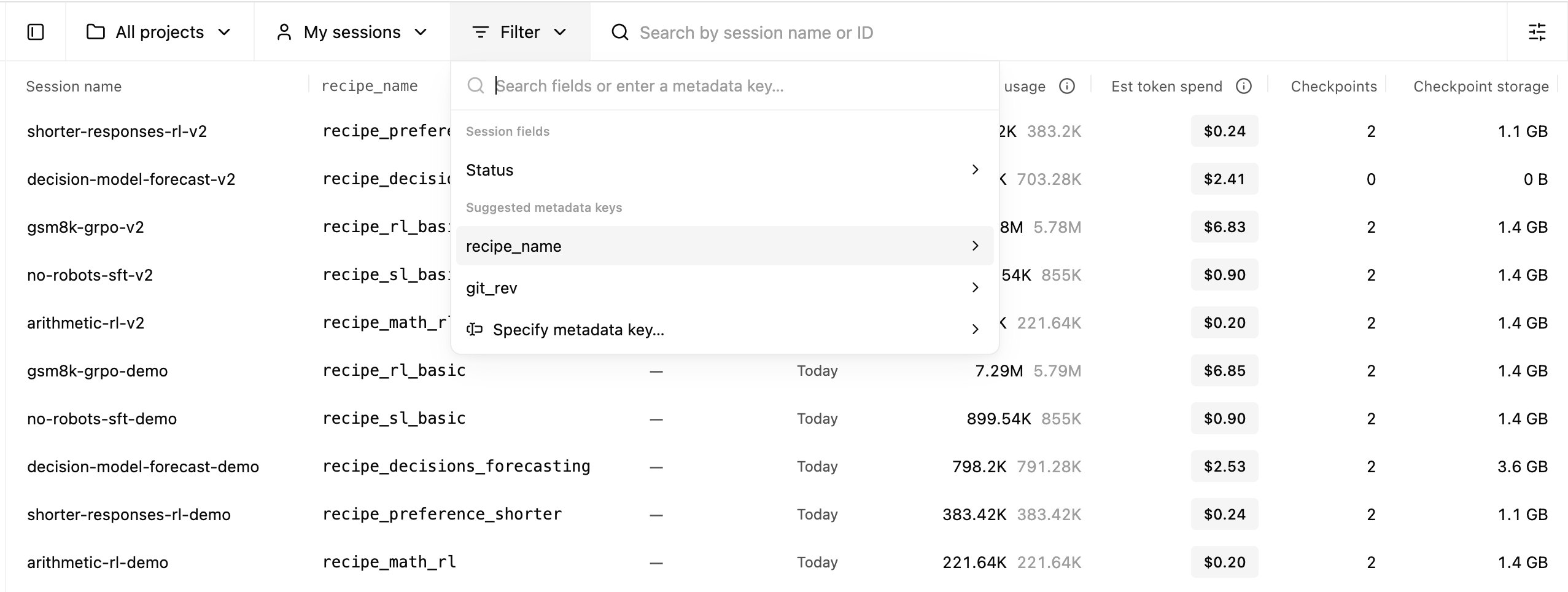
Use the Filter menu in the sessions and checkpoints pages to filter by specific metadata key/value pairs.